This how-to is for correcting axis orientations or rotation issues when exporting a file from Inventor to Cura.
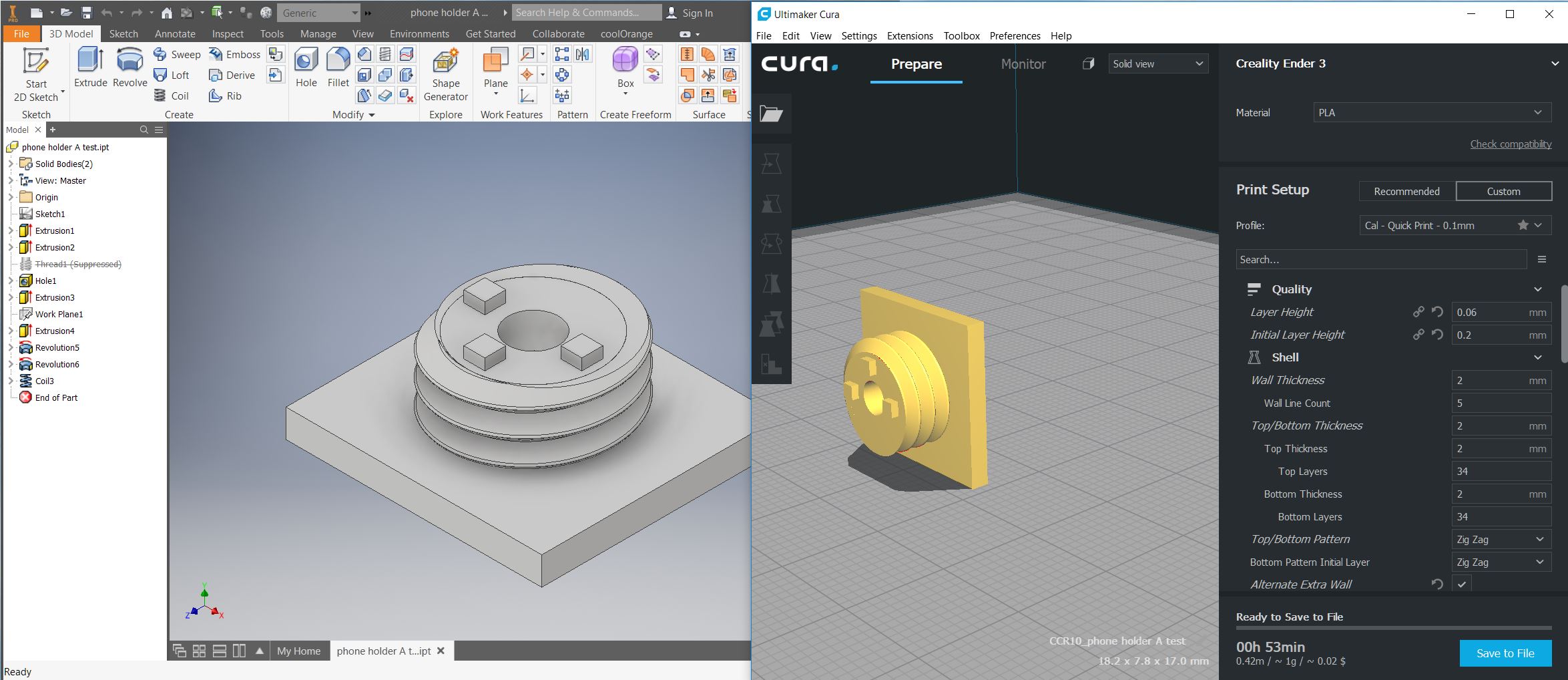
improper orientation causes this issue in Cura
Step 1
Open Inventor.
Export as an STL and import into Cura (how to export a STL here)
Do not rotate the model in Cura
Step 2
Rotate your view in Inventor to match the Cura model. This will make the next steps more intuitive.

Step 3
Under the Modify section, click “Move Parts”
Step 4
In the “Move Bodies” dialog box, select the last item from the drop-down - “Rotate about line”

Step 5
Select the line you’d like to rotate around.
This should be the same rotation you’d like the part in Cura to rotate.

Step 6
Click “Bodies”, then click your part.

Step 7
You can change the angle, if needed.
Press OK to rotate the model.

Step 8
Export a new STL and import into Cura

Step 9
The model should now be properly oriented in Cura!
